Electronic Prior Authorization Accelerator Workflow – Worklist
Worklist Overview
The Electronic Prior Authorization Accelerator Worklist provides a centralized view of all tasks that may require action by the provider or their representative/delegate.
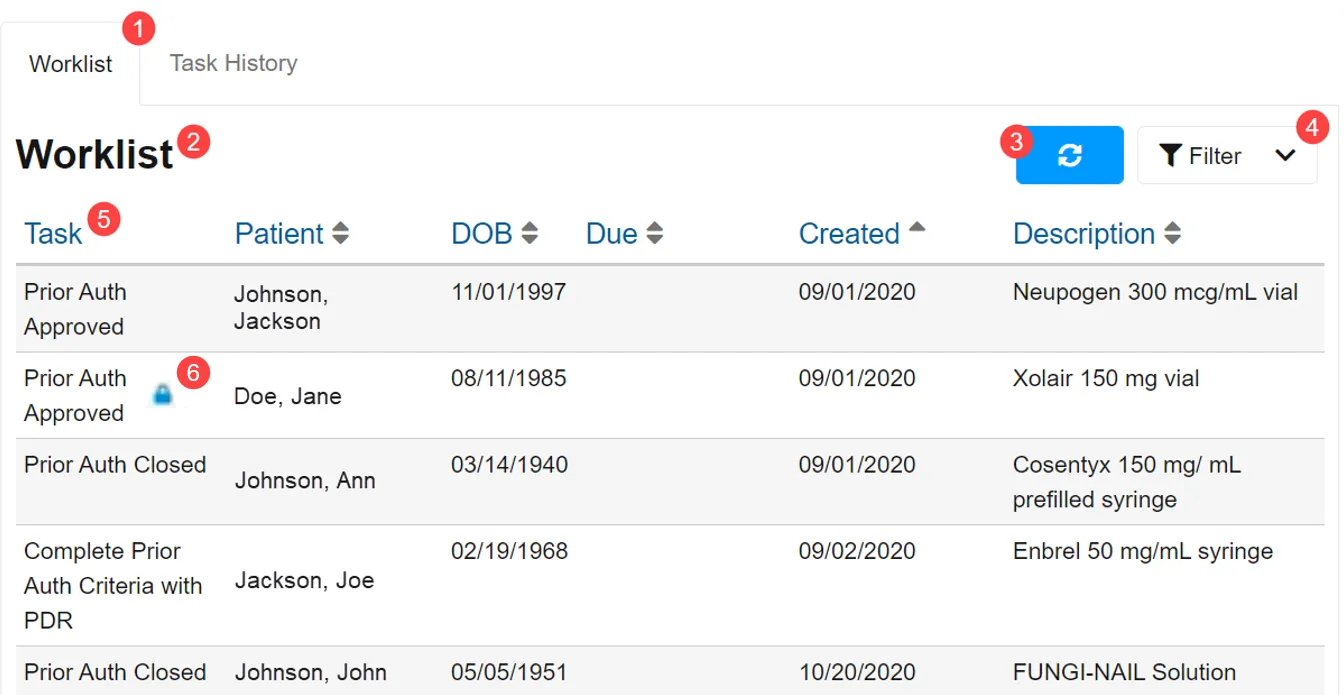
Note for EHR: Remove or replace this section EHR is receiving the worklist via web services and displaying in the native application.
- Navigation Bar – Users can switch between viewing their Worklist or Task History. If the Navigation Bar is absent (due to EHR defined configuration), users must use their EHR user interface to invoke each view separately.
- Worklist – Users actionable tasks.
- Task History – Electronic prior authorizations awaiting action from the payer or their representative as well as closed prior authorizations.
- Active List Name – Shows users if they are viewing the Worklist or the Task History view.
- Refresh Button – Select this button to manually refresh the list.
- Filter Drop-Down – Filters can be used to narrow the results displayed. Current parameters include Patient First Name, Patient Last Name, Patient Date of Birth, Created From/Through Date, and Due Date From/Through.
- Task List – Shows user list of active tasks they have access to. By selecting a column header (other than Task), users can sort their tasks in ascending/descending order. Only one sortable criterion may be active at one time. ▲ indicates a descending sort, while ▼ indicates an ascending sort.
- Locked Task – Indicated by a blue lock icon, the task locking feature prevents multiple users from working on the same task at the same time in order to prevent duplication of work, miscommunication, or conflicting questionnaire answers. When multiple users have access to the same worklist, they can see the same tasks that are available to them; however, once a user starts working on a task, its status becomes Locked (also indicated on the Task History page), and another user cannot work on the task until it is either completed or it has been unlocked. A task is unlocked when the user who is working on it navigates back to the Worklist from the Options menu.
Note for EHR: EHR should include instructions on how a user can "hand off" ePA task to another user, and how that other user will be notified of the new ePA task.
Starting an Electronic Prior Authorization
Note for EHR: EHR should provide instructions on how to initiate an ePA request in the EHR. The PAInitiationRequest is coded and developed by the EHR. If there are questions on this process, the user should reach out to their EHR.
Completing a PBM/Payer’s Question Set
When a PBM/payer needs additional questions answered, they respond with an open ePA message, which contains a Question Set.
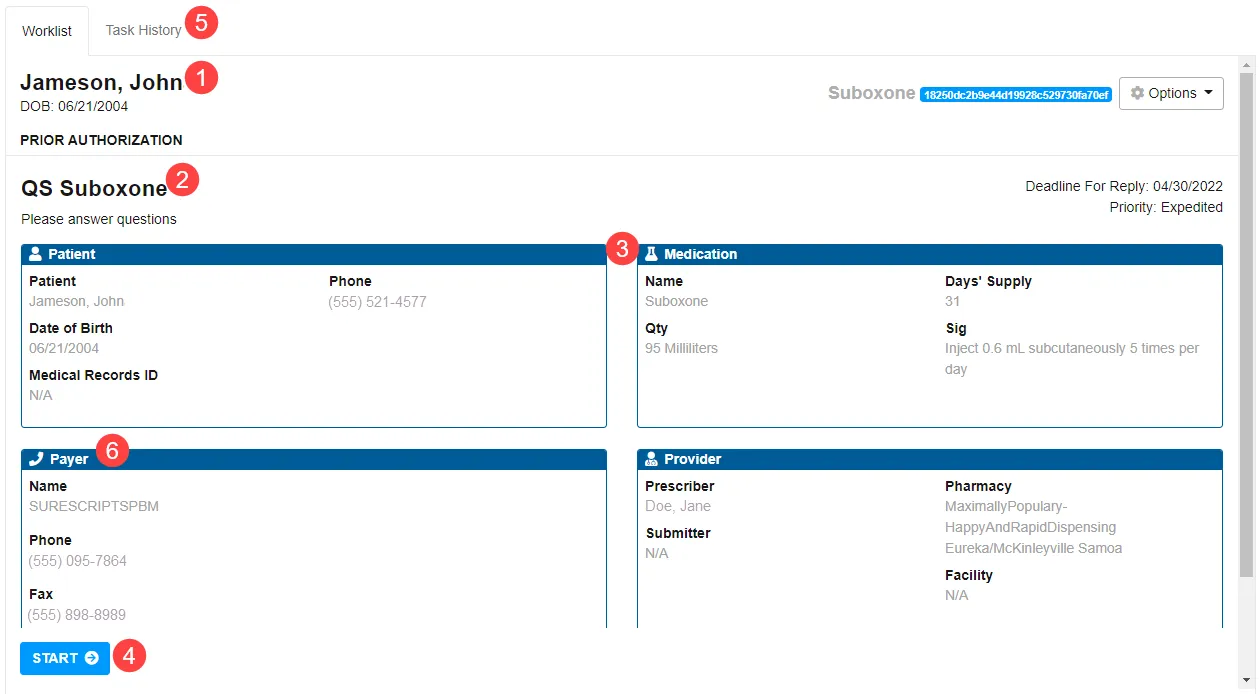
- Task/Patient Header – Displays information regarding the specific ePA task that is open. Includes patient name, medication requested, and the PA Case ID (assigned by the PBM/payer).
- Question Set Information – Displays the title and subtitle of the question set.
- Information Area – Information specific to the ePA case is displayed within different boxes within the task screen. The details shown contain new information from the PBM/payer, potentially including payer contact information, notes, and the deadline for reply. The Patient Information and Provider Information boxes contain data that was sent in the initial request.
- Start Button – By selecting the start button, users with a role of preparer or submitter can view and respond to the question set sent by the PBM/payer.
Users may need to scroll down on the dialog box to see all content and options.
- Task History – Users can go to the Task History screen to see additional information regarding the selected ePA, including status, action, etc.
- Payer Contact Information – Provided by the PBM/payer or health plan.
Starting a Question Set/Responding to a Question Set
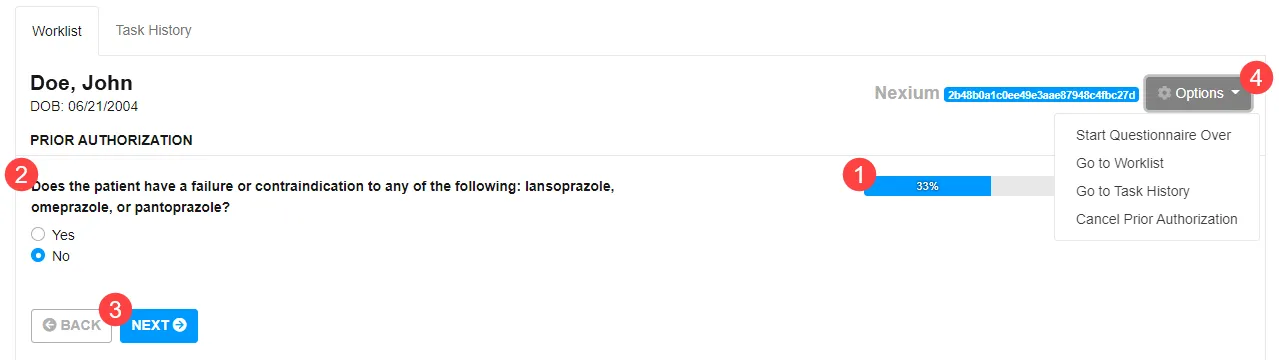
- Progress Bar – Shows the user their progress through the current Question Set.
- Question – This shows the user the current question that the user is answering. Question types are based on the NCPDP standard; see Question Types below for more details on the different question types.
- Navigation Buttons – Allows the user to move backward or forward through the question set.
- Options Drop-Down – The Options drop-down menu allows users to start the questionnaire over, go to Worklist or Task History, or cancel the prior authorization.
Question Sets have built-in logic that prevents users from being presented with irrelevant questions. Please note that content and complexity of the Question Set logic will vary from PBM/payer to PBM/payer. The progress bar indicates current progress towards completing the Question Set.
The accelerator logs the user out if they are idle for more than one hour (i.e., no mouse clicks, movements, or keystrokes).
If the user navigates to the next question or exits the Accelerator completely, progress will automatically be saved on previously answered questions. Progress will not be automatically saved by clicking on the Worklist tab. Once the task is opened, it will move to the top of the Worklist.
The Accelerator presents different options for answering a question based on the question type. See Question Types for more details on the different question types. Data validation is performed on responses before allowing them to be saved or submitted to the PBM/payer.
Question Types
The Accelerator presents the questions based on question set logic provided by the PBM/payer.
- Select (Multi) – Indicates the answer to the question is to be selected from a set of choices. The Accelerator displays check boxes to indicate that multiple responses may be selected.
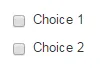
- Select (Single) – Indicates the answer to the question is to be selected from a set of choices. The Accelerator displays radio buttons to indicate that a single response may be selected.

- Date – Indicates the answer to the question is a date.

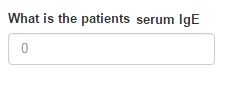
- Numeric – Indicates the answer to the question is numeric. The Accelerator uses conditional logic provided by the PBM/payer to determine the next question based on an exact value provided or upper/lower bound(s).
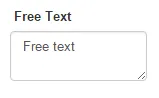
- Free Text – Indicates the answer to the question is free text.
- Comments – PBM/payers can indicate if free text comments are allowed and/or required for specific responses to questions.
Reviewing & Submitting a Completed Question Set
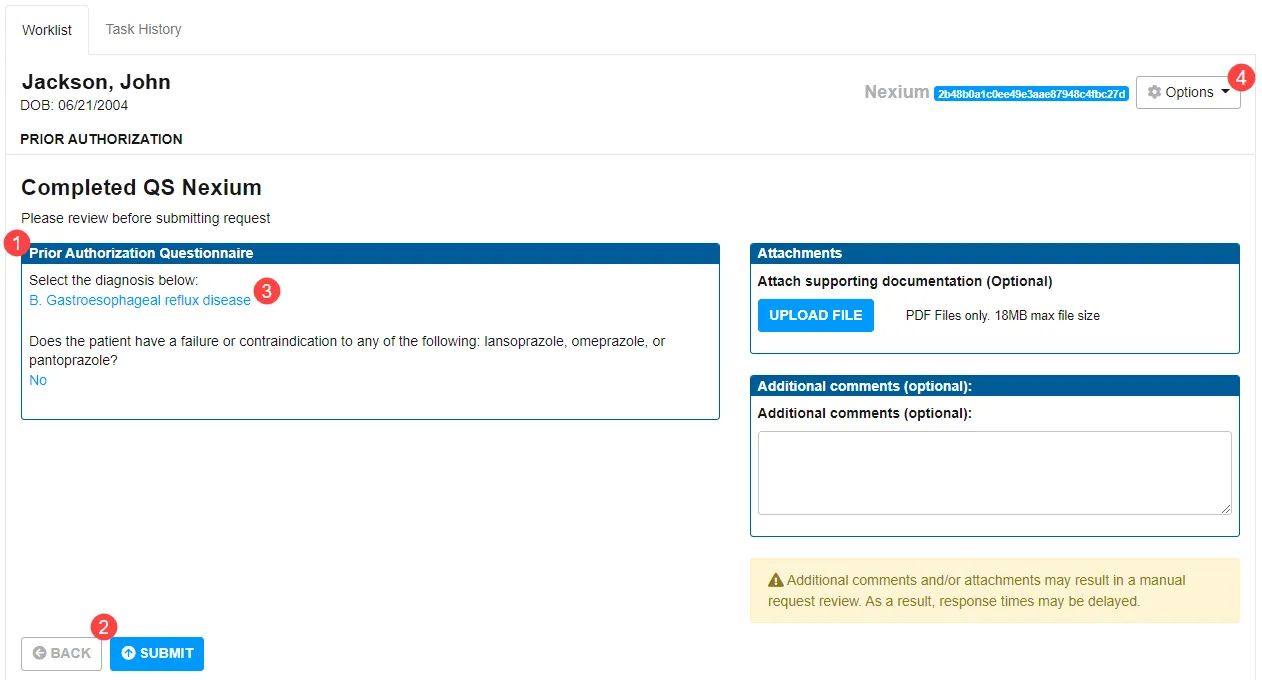
- Question Set Questions – The questions and their number within the Question Set are provided here. Only questions that were displayed to the end user and answered will be displayed.
- Navigation/Submit Buttons – These buttons allow the user to navigate back to the most recently answered question or to submit all their responses to the PBM/payer.
- Question Set Response – The user can see all their responses to questions presented within the Question Set. To modify a previously provided response, the user can select the answer and will be brought to that specific question.
- Options Drop-Down – This allows user to go to Worklist or Task History.
Upon completion of the Question Set, the Accelerator presents the user with a review/submission screen. Users must carefully review all responses to ensure accuracy and to prevent delay in PBM/payer processing. If a response needs to be changed, users can select the Back button to navigate to the most recent question, select the specific response for a particular question to go back and make changes or select Start Over to begin the Question Set from the beginning.
Notes:
- If the payer has indicated that an attachment is required as part of the response, the submit button will not be active until an attachment is included.
- Due to branching Question Set logic, if a user changes a previously provided response, they may be required to answer additional questions.
Once responses have been verified, select the Submit button to send the completed Question Set to the PBM/payer.
Reviewing a PBM/Payer’s Prior Authorization Response
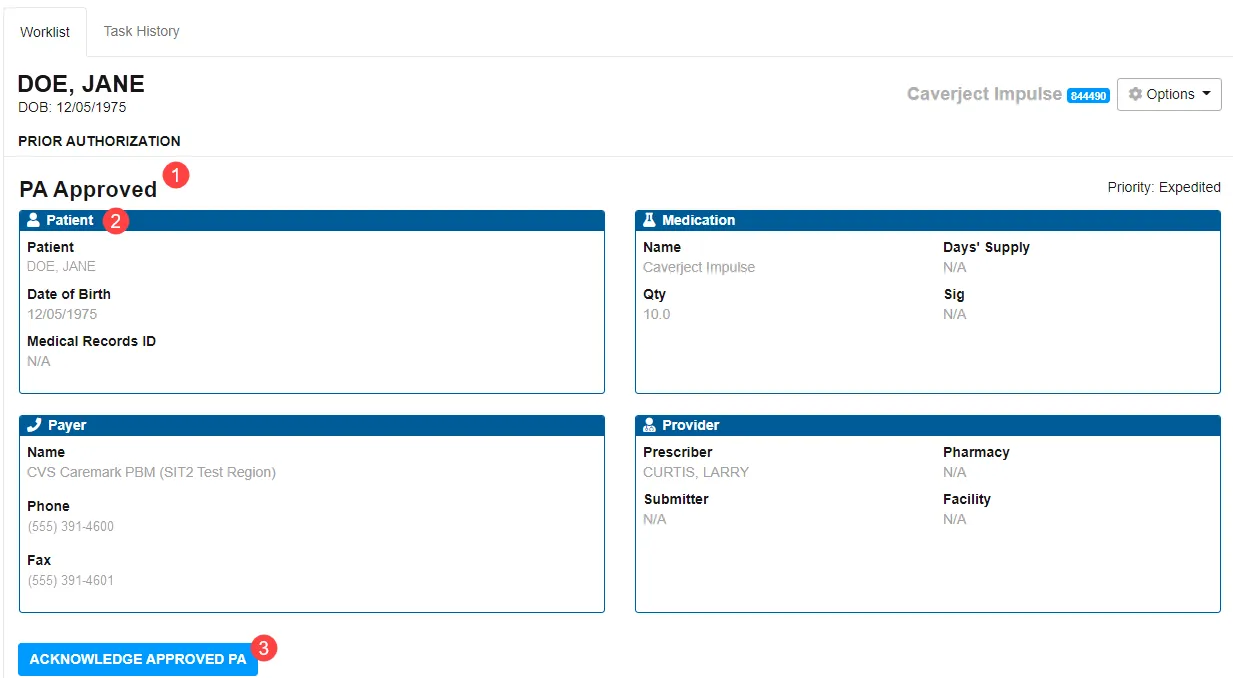
1. Prior Authorization Response Type – The response from the PBM could be any of the NCPDP standard response types, including Approved, Denied, Partially Denied, Closed, Deferred, etc.
2. Information/Details – Depending on the status of the response, boxes could contain information such as Authorization Details, Outcome Information, Patient Information, Notes, Attachments, etc.
3. Action Buttons – The available actions for the selected task are displayed here. They are role and task-specific (e.g., if eAppeal is supported, the Appeal button appears. If the user does not have appropriate access or eAppeal is not supported, the button is not present).
Note for EHR: EHR should describe how a user will know a PBM has responded to a PA request. Is there a reminder message? Does the user need to check their worklist manually?
Acknowledging Response
Users must close out finalized prior authorizations by responding with an acknowledgement or an appeal. An appeal can only be selected if indicated as supported by the payer. If a response is acknowledged, the response cannot be electronically appealed later. Once acknowledged, the task will be moved to the history tab.
All responses need to be acknowledged in order to be cleared from the worklist, including closed PAInitiationResponses and errors.
Note: By default, Accelerator customers are configured to have their closed "CC" responses automatically acknowledged. Responses of this kind indicate that a PA was not necessary so the user can proceed with the release of the prescription. To minimize overhead, it is recommended that the EHR implements the release of such instances automatically, ensuring that the NewRx contains the PA code of "N" for Not Required. The pharmacy will then fill the prescription knowing that the EHR already conducted any PA related activity. If you do not want an acknowledgement to automatically be returned for these instances, advise your Integration resource to turn it off.
PAResponses may include:
- Approved – Indicates that the PBM/payer approved the prior authorization.
Notes:
- There are cases where the PBM/payer may have made changes regarding the prior authorization details (e.g., refills or days supply). Users should pay close attention to the Authorization Details information box and the PANote as there may be additional information.
- Upon receipt of an approved response, the NewRx should be populated with a PriorAuthorizationStatus of “A”. If an AuthorizatioNumber is included in the PAResponse, this value should be mapped to the PriorAuthorization element in the NewRx.
- Denied – Indicates that the PBM/payer denied the prior authorization for the requested patient and medication.
Note: It is recommended that a response of this kind is returned to the prescriber to consult with the patient for next steps. Releasing to the prescriber without first discussing with the patient is not recommended as this can cause a poor experience for the patient when they pick up the medication and are only then advised that their insurance did not approve the medication.
- Partially Denied – New with 2017071, this response indicates that the prior authorization has been approved but with limits.
Note: Responses of this kind can take one of two paths 1) modify the prescription and restart the PA process or 2) modify the prescription based on the details provided in the response and release NewRx to the pharmacy with a PAResponse of "A". If an AuthorizatioNumber is included in the PAResponse, this value should be mapped to the PriorAuthorization element in the NewRx.
- Closed – Indicates that the PBM/payer closed the prior authorization process due to the reason specified (patient not found, prior authorization not required, etc.)
- In Process – New with 2017071, this response indicates that the prior authorization is in process and may include the expected resolution date.
Responses That Contain an Attachment
If the response from the PBM/payer contains an attachment(s), the Accelerator displays an Attachment tab.
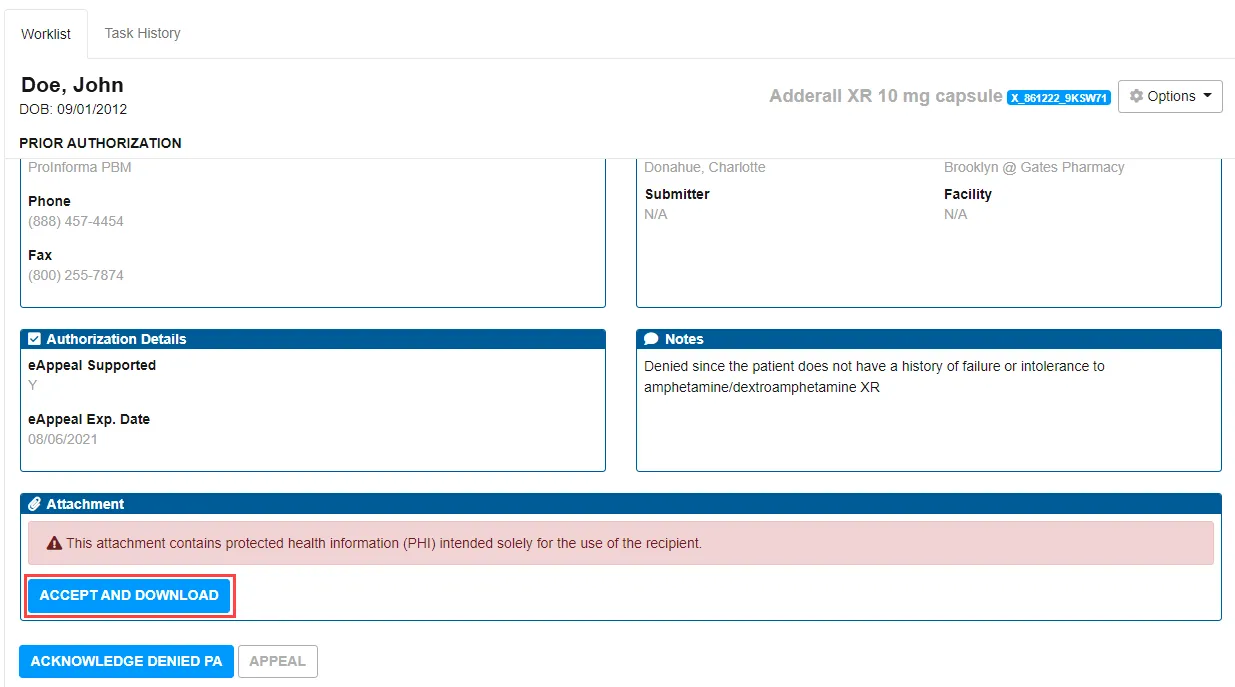
Select the Accept and Download button to view the .zip file containing the attachment(s). Ensure that proper security protocols are followed when viewing protected health information (PHI).
Electronic Prior Authorization Accelerator supports .pdf attachments only.
Prior Authorizations Managed by a Third-Party Processor
Some PBM/payers use a third-party processor to manage their prior authorizations. In such instances, the PBM/payer returns a response with a reason code of CP or CO. Surescripts then performs a search for a third-party processor. If found, Surescripts sends a PAInitiationRequest on behalf of the EHR. The response from the third-party processor is returned to the user in the same manner as any ePA transaction. If the third-party processor does not support ePA or Surescripts is unable to find a third-party processor, the user will receive a PAInitiationResponse detailing this indication.
Reviewing Prior Auth Notes from Multiple Entities
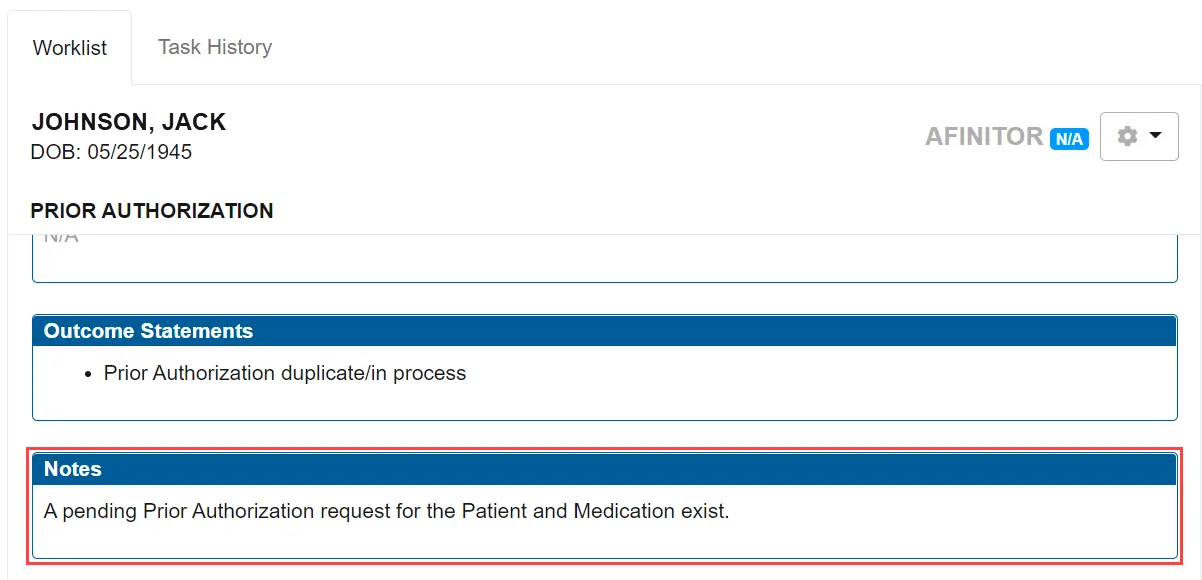
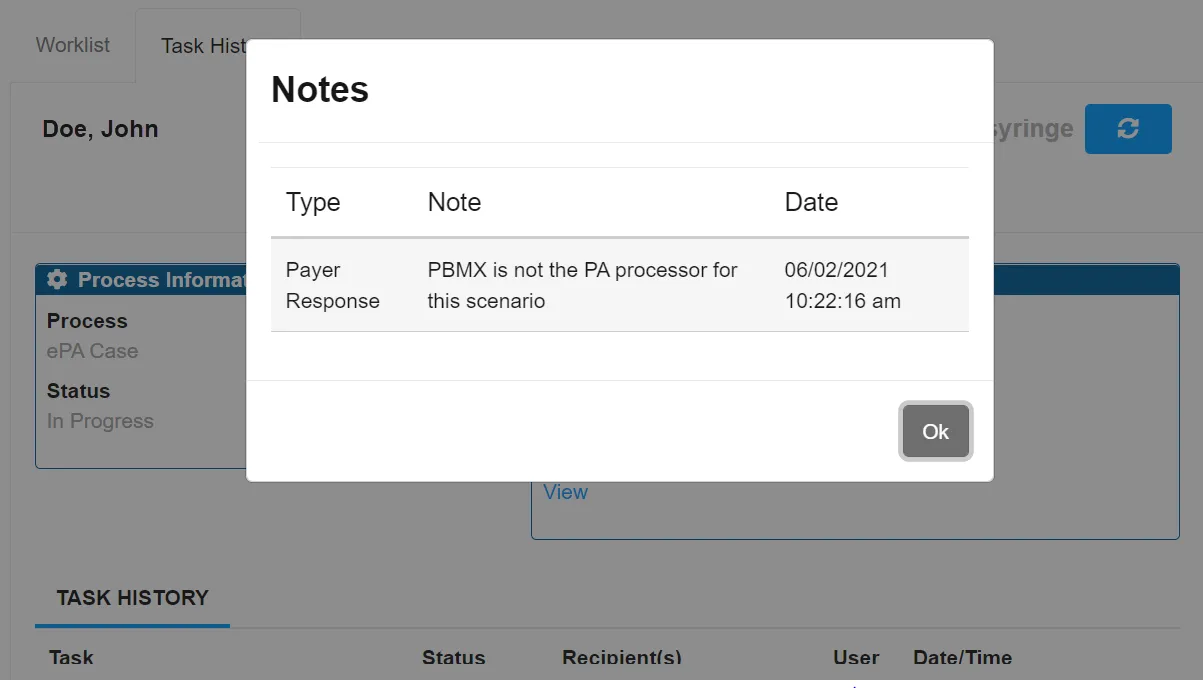
PBM/payers, third-party processors, and Surescripts may include additional free-text details with their ePA responses. Users can review the details to determine the most appropriate or required action for an ePA by referring to these PA Notes. Each message will have its own designated area for notes.
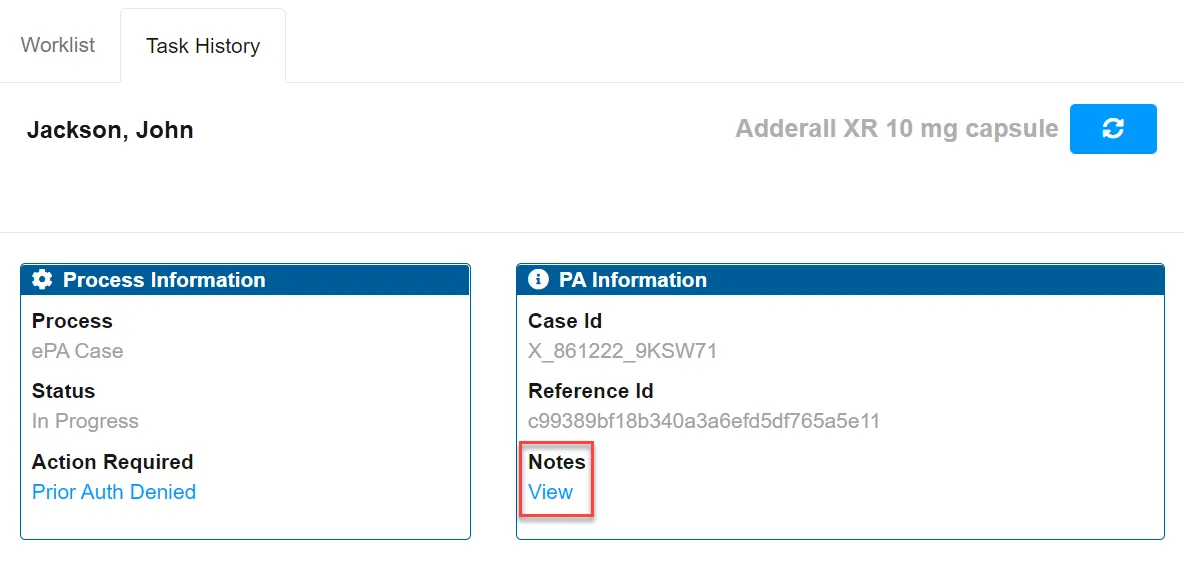
Users can review all processing details including those where the original PBM/payer was not the PA processor by reviewing the details found under the Task History tab. Under Notes, select the View option to bring up a chronological view of all PA Notes received in response to the selected ePA.
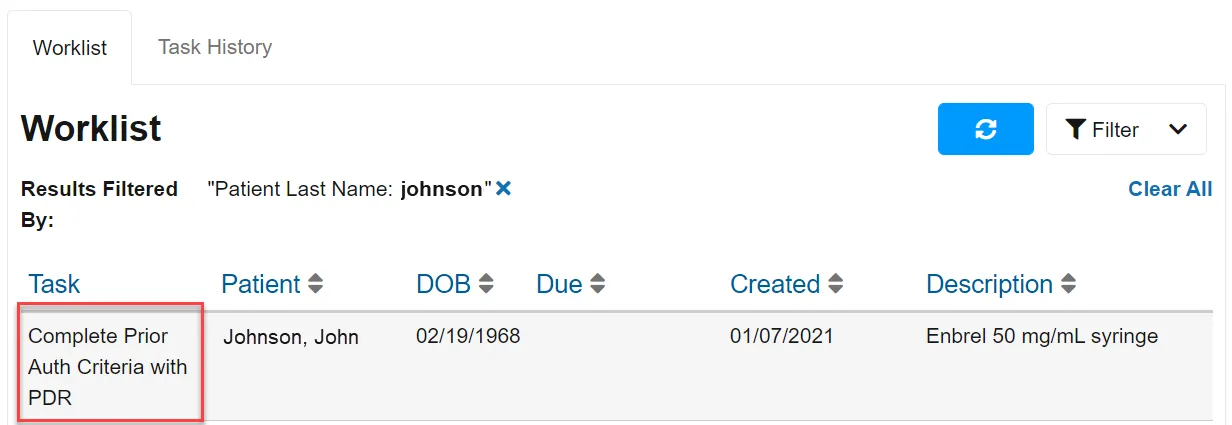
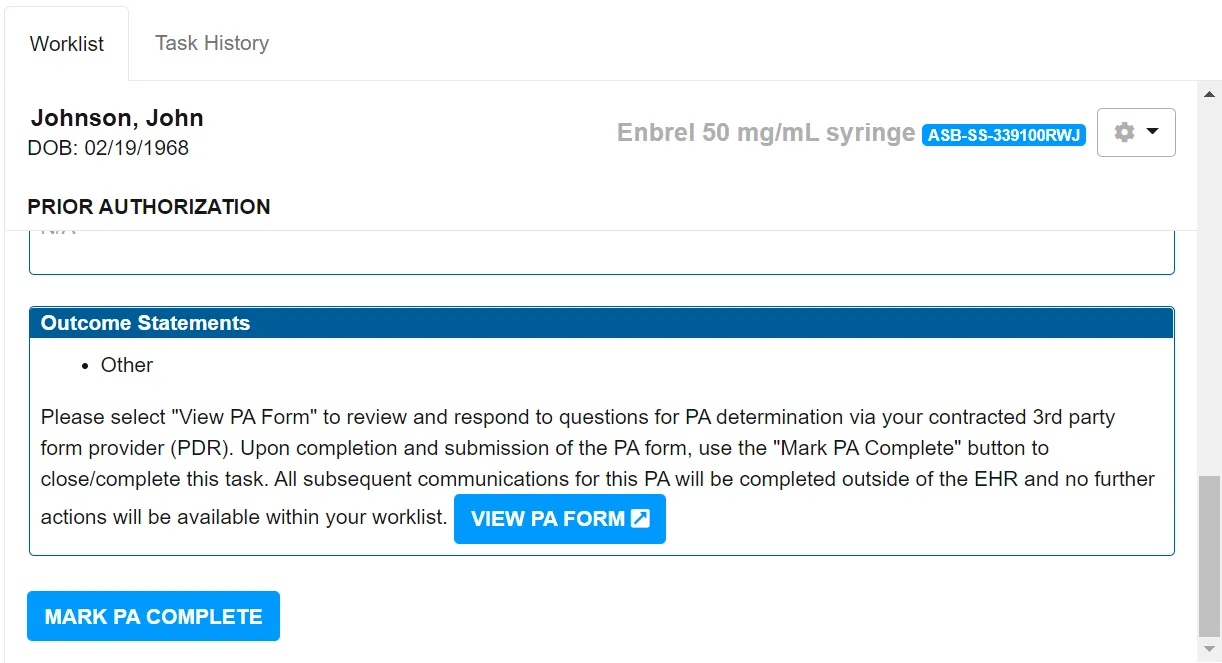
If Surescripts is unable to find an electronic route for an ePA, a search for an online form is automatically initiated using a third-party electronic forms provider. Using the information submitted in the original request, a link may be returned that allows the user to enter in the required details to a specific form or select from the best match from a list of forms. If a match cannot be found, a closed response will be received. Re-entry is minimized for the user by using detail from the original request to auto populate as much information as possible. Accelerator considers the PA process complete once the form is submitted and the task is acknowledged. Completed forms are faxed to the health plan. When a request drops to fax, the response from the health plan will be returned by fax or phone.
Submitting a Prescription to the Pharmacy with Prior Authorization Details
Current Status of the Prescription
Note for EHR: EHR should describe what happened to the medication when the prior authorization was started.
Adding the Prior Authorization Details to the Prescription
Note for EHR: EHR should provide steps, if applicable, on how the end user should enter the information into the prescription.
Appealing a Prior Authorization
The Appeal button cannot be selected unless the payer response indicates eAppeals can be processed. The below details the process when appeals are applicable.
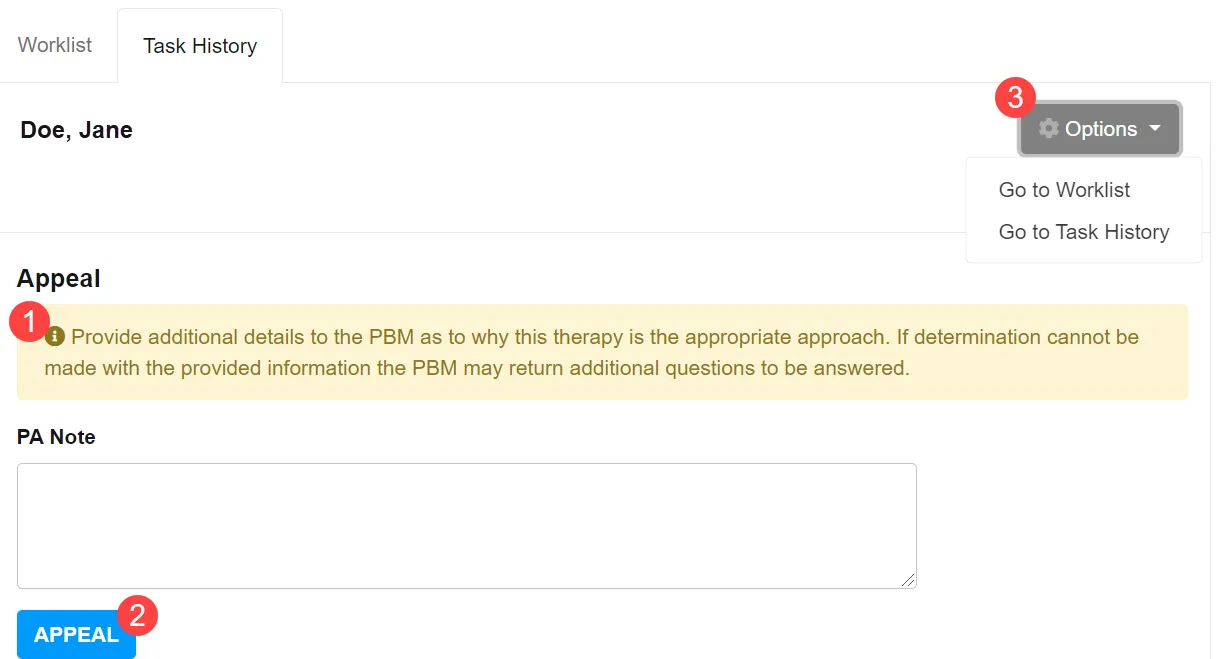
- PA Note – This free text box allows a user to indicate why they are appealing the PBM/payer’s response. The PBM/payer may respond with an approval/denial or may request additional information using additional Question Sets.
- Appeal Button – Selecting this will allow the user to submit the appeal to the PBM/payer. This button may not be available depending on user access.
- Options – Using this drop-down menu, users can return to the Worklist or Task History.
Cancelling a Prior Authorization
Users can cancel a prior authorization from the Task History list. See Reviewing a Prior Authorization Process - Cancelling a Prior Authorization below for details on how to access prior authorizations that can be cancelled.
Cancellations can only be made after the PBM/payer has returned a PAInititiationResponse.