Adding and Editing Locations
1 min
Locations allow the user to more easily identify a provider’s location. Tasks that are listed on the Worklist are specific to prescriber location where the user is signed in. Refer to Worklist OverviewWorklist Overview for more information.
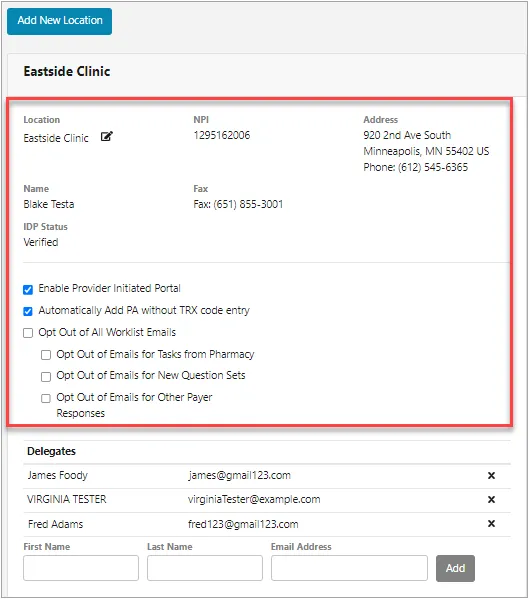
When the user completes ID verification, a location will be added to the provider’s profile. To add more locations or edit their information, follow the procedure below.
To add a location and edit its settings:
- Click the user account menu in the upper-right corner of the screen, and then select Location Management.
- Click the Add New Location button to create a new location.
- Fill in all required contact information fields, and then select the check box for Enable Provider Initialed Portal if you wish to enable that option.
- Click the Save Location button to return to the location page.
- To continue making modifications to a location, simply navigate to it on the Locations page and then select or clear any of the available check box options:
- Enable Provider Initiated Portal − Allows prior authorization requests to be manually created and initiated without a TRX code.
- Automatically Add PA notification from Pharmacy without TRX code entry − Automatically adds PA initiate tasks to the worklist when sent by pharmacy without entry of the associated TRX code.
- Opt Out of Worklist Emails – Notification of new PA initiate task will not be sent to the email accounts associated to the location.
- Refer to Managing DelegatesManaging Delegates for adding and removing delegates at a specific location as needed.