Worklist Overview
2 min
The Worklist provides a centralized view of all tasks that may require action from the user accessing it. Worklist tasks reflect access assigned to each user – a user is associated with tasks for specific providers/patients as well as assigned a role for each of those affiliations. The tasks listed on the Worklist are specific to prescriber locationprescriber location where the user is signed in.
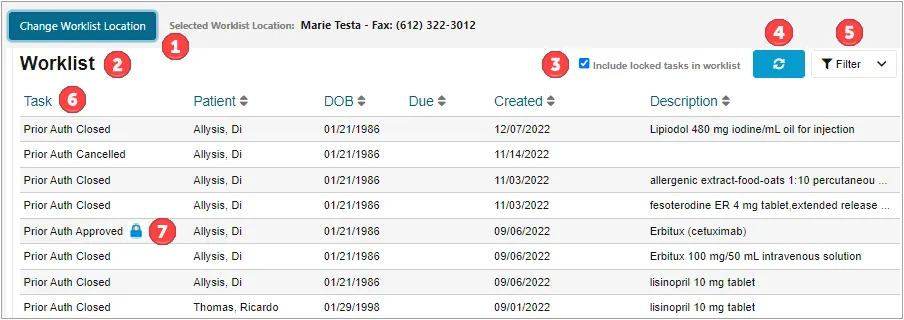
- Worklist Location – The prescriber location where the user is signed in. This location determines the Worklist items that are displayed on this page. To change locations, click the Change Worklist Location button as shown above.
- Active List Name – Users can easily see which list is currently being presented to them (Worklist or Task History).
- Include locked tasks in worklist – Checkbox option for displaying tasks that are currently being worked on by another user. When this checkbox is cleared, locked tasks will not appear on the Worklist. For more information, see (7) Locked Task below.
- Refresh Button – Click the Refresh button to manually refresh the current list.
- Filtering Options – Users can select Filtering Options to show the list of available filters. Currently, users can filter by Patient First Name, Patient Last Name, Patient Date of Birth, Created From/Through Date, and Due Date From/Through.
- Task List – Shows the list of active tasks that a user has access to. By selecting a column header (other than Task), users are able to sort their tasks in ascending/descending order. Only one sortable criterion may be active at one time.
 indicates a descending sort, while
 indicates an ascending sort.
- Locked Task – Indicated by a blue lock icon, the task locking feature prevents multiple users from working on the same task at the same time in order to prevent duplication of work, miscommunication, or conflicting questionnaire answers. When multiple users have access to the same worklist, they can see the same tasks that are available to them; however, once a user starts working on a task, its status becomes Locked (also indicated on the Task History page), and nobody else can work on it until the task is either completed or it has been unlocked. A task is unlocked when the user who is working on it navigates back to the Worklist from the Options menu.
Changing Prescriber Location
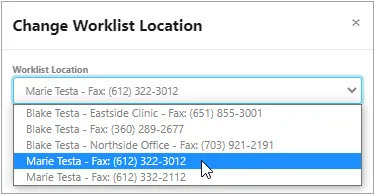
The tasks listed on the Worklist are specific to prescriber location where the user is signed in. This assignment is displayed at the top of the Worklist page as shown in the previous section. The location and prescriber can be changed by clicking the Change Worklist Location button, and then selecting the new location as shown below.