Completing a PBM/Payer’s Question Set
The starting page for responding to a Question Set contains information that was submitted in the initial request, as well as any new information.
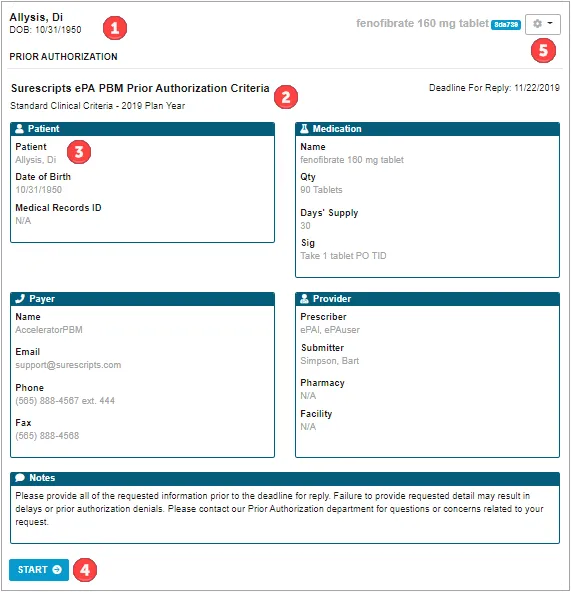
- Task/Patient Header – Displays information regarding the specific ePA task that is open. This includes patient name, medication requested and the PA Case ID (assigned by the PBM/payer).
- Question Set Information – Displays the title and subtitle of the question set.
- Information Area –Information specific to the ePA case is displayed within different boxes within the task screen. The details shown contain new information from the PBM/payer, potentially including payer contact information, notes, and the deadline for reply. The Patient Information and Provider Information boxes contain data that was sent in the initial request.
- Start Button – Clicking the Start button enables users to view and respond to the question set sent by the PBM/payer.
Note: Users may need to scroll down on the dialog box in order to see all content and options.
- Options Drop-Down – Use the Options drop-down menu to access task history for the current ePA task. Additional information regarding the current ePA including status, actions, previously answered questions, and required action can be found on the Task History screen.
Starting the Question Set/Responding to Questions
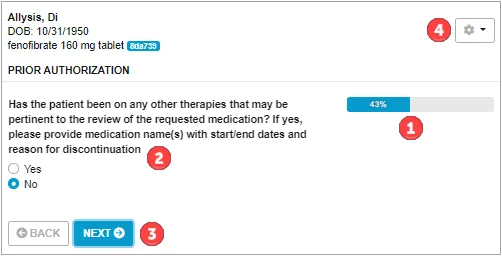
- Progress Bar – Shows progress through the current Question Set.
- Question –Shows the current question that the user is answering. Question types are based on the National Council for Prescription Drug Programs, (NCPDP) standard; see the Question TypesQuestion Types section for more details on the different question types.
- Navigation Buttons – Use to go back or forward one question.
- Options Drop-Down – Use to navigate through the portal as needed.
After opening a task, the user can click the Start button to be presented with the PBM/payer’s first question. Question Sets are intended to have built-in logic that prevents users from being presented with irrelevant questions. Please note that content and complexity of the Question Set logic will vary. The progress bar indicates current progress towards completing the Question Set.
Note: User sessions time out after a period of one hour, regardless of progress or action being taken within a task.
Navigating to the next question will automatically save progress on previously answered questions. Progress will not be automatically saved by clicking on Task History or Return to Worklist.
Different options are presented for answering a question based on the question type, see the Question TypesQuestion Types section for more details on the different question types. The application performs data type validation on responses before allowing them to be saved or submitted to the PBM/payer. This means that a single select question will not allow users to submit multiple selections and a number type question will be limited to numerical values – the application does not check for validity of response, but merely follows the question logic provided by the PBM/payer within the Question Set.
Saving Progress
Question Set progress is saved based on the user's last answered question. This does not submit the Question Set to the PBM/payer but allows the user to return to finish at a later point or allows another user to finish responding.
Question Types
- Select (Multi) – Indicates the answer to the question is to be selected from a set of choices. Check boxes are displayed to indicate that multiple responses may be selected.
- Select (Single) – Indicates the answer to the question is to be selected from a set of choices. Radio buttons are displayed to indicate that a single response may be selected.
- Date – Indicates the answer to the question is a date.
- Numeric – Indicates the answer to the question is numeric. Conditional logic provided by the PBM/payer is used to determine the next question based on an exact value provided or upper/lower bound(s).
- Free Text – Indicates the answer to the question is free text.
- Additional Comments – PBM/payers can indicate if free text comments are allowed and/or required for specific responses to questions.
- Attachments – PBM/payers can indicate additional documentation be submitted via an attachment (lab results, PACS imaging, chart notes, etc.) for a specific response to a question.
Reviewing & Submitting a Completed Question Set
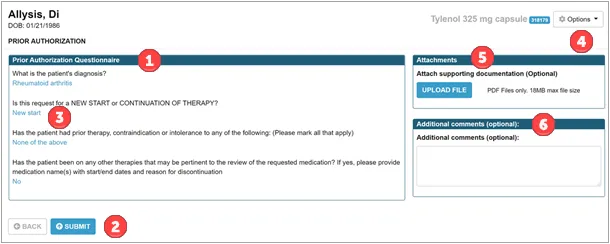
- Question Set Questions – The questions and their number within the Question Set are provided here. Only questions that were displayed and answered will appear here.
- Navigation/Submit Buttons – Navigates back to the most recently answered question, or to submit all responses to the PBM/payer.
- Question Set Response – View all responses to questions presented within the Question Set. To modify a previously provided response, select the answer to be brought to that specific question.
- Options Drop-Down – Use this feature to go to the Task History screen for the current ePA task.
- Attachments – Additional documentation can be added as an attachment with the completed question set.
- Comments – Enter optional comments for communication with the PBM/Payer.
Upon completion of the Question Set, a review/submission screen appears. Carefully review all responses to ensure accuracy and prevent delay in PBM/payer processing. If a response needs to be changed, click the Back button at the bottom of the page to navigate to the most recent questions. Once there, select the specific response for a particular question, or select the Start Questionnaire Over item from the Options menu to restart the Question Set.
Once responses have been verified, click the Submit button to send the completed Question Set to the PBM/payer.
Note: Due to branching Question Set logic, changing a previously provided response may require answering additional questions.